Google Play Blocked My AAB: A Practical Guide to Fixing Android 16 KB Page Size Issues
How I traced a Google Play release warning to native library ELF alignment, fixed the SQLCipher dependency, and verified the Android 16 KB page size requirement before release.
Keywords: Android 16 KB page size, Google Play, AAB, Flutter, native library, SQLCipher, zipalign, llvm-readelf
Background: The App Was Fine, but the Release Was Blocked
While preparing an Android app update for Google Play, I ran into a release-blocking warning in Play Console: the app did not support the 16 KB memory page size requirement.
This kind of issue is easy to misread. The app may run perfectly on local devices. Debug builds may install and launch without any visible problem. But Google Play checks the release artifact itself, and it may reject or warn about compatibility issues before the app reaches users.
This was not a typical business logic bug. It was not really a Dart, Kotlin, or Java bug either. It was a build artifact compatibility issue: one of the native libraries packaged inside the app, a .so file, needed to meet Android’s 16 KB page size compatibility requirement.
If your app uses Flutter, React Native, Unity, Kotlin/Java with NDK components, or third-party SDKs for databases, audio/video, encryption, maps, recognition, or payments, this is the kind of release issue you may eventually hit.
What the 16 KB Page Size Issue Means
Android devices historically used 4 KB memory pages. Newer devices increasingly support, and in some cases require, 16 KB page sizes. Regular Java, Kotlin, or Dart code usually does not directly care about this. The risk is mostly in native shared libraries, the .so files packaged inside APKs or AABs.
Google Play checks whether the native libraries in the final release artifact are compatible. If a .so file has an ELF segment alignment of 0x1000, that means 4 KB alignment, and it may be treated as incompatible with 16 KB page size devices.
Compatible values are usually:
0x4000
or:
0x10000
In plain terms, the question is not “does the app run on my phone?” The real question is “were the native libraries inside the release package built or aligned correctly for 16 KB page size devices?”
Step 1: Do Not Start by Rewriting Business Code
When this issue appears, the first step should not be a large code rewrite. A better order is:
- Check whether the project includes native libraries.
- List all
.sofiles inside the final APK or AAB-generated APK. - Check the ELF
LOAD Alignvalue of each.so. - Identify the exact incompatible library.
- Decide whether to upgrade an SDK, replace a dependency, or rebuild the native library.
Common root causes include:
- An outdated Android Gradle Plugin.
- An outdated NDK or build toolchain.
- A third-party SDK shipping old
.sofiles. - A Flutter or React Native plugin indirectly pulling in old native libraries.
- APK zip alignment being correct while the internal ELF alignment of a
.sofile is still wrong.
In this case, AGP, Gradle, and the Flutter native outputs were not the main problem. The actual issue came from an older encrypted database native library. Its libsqlcipher.so still used 4 KB alignment.
Step 2: Locate the Problem Library
To inspect .so alignment, you can use llvm-readelf from the Android SDK / NDK.
Example PowerShell commands:
$Sdk = "$env:LOCALAPPDATA\Android\Sdk"

$Readelf = Get-ChildItem "$Sdk\ndk\*\toolchains\llvm\prebuilt\windows-x86_64\bin\llvm-readelf.exe" |
  Sort-Object FullName -Descending |
  Select-Object -First 1 -ExpandProperty FullName

Get-ChildItem ".\apk-unpacked\lib" -Recurse -Filter "*.so" | ForEach-Object {
  Write-Host "`n==== $($_.FullName) ===="
  & $Readelf -l $_.FullName | Select-String "LOAD"
}
Look at the final Align value on each LOAD line.
Typical failing result:
LOAD ... Align 0x1000
Passing results:
LOAD ... Align 0x4000
or:
LOAD ... Align 0x10000
This step is valuable because it narrows the problem from “Google Play says my app is incompatible” to “this exact .so file is incompatible.”
Step 3: Do Not Rely on zipalign Alone
Android’s zipalign tool is also important, but it checks a different layer.
zipalign verifies zip-level alignment inside the APK:
zipalign -c -P 16 -v 4 app-release.apk
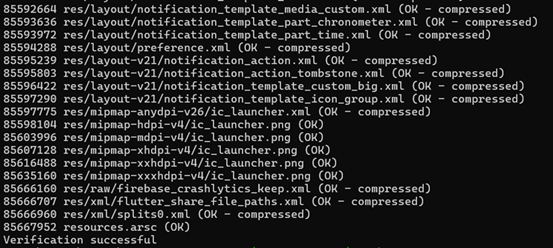
If it passes, you should see:
Verification successful
But this does not guarantee that all .so files have valid ELF alignment. zipalign proves that the APK packaging layer is aligned correctly. It cannot fix an old .so whose internal ELF segment alignment is still 4 KB.
A complete check should include at least:
zipalign -c -P 16 -v 4llvm-readelfchecks for every.sofile’sLOAD Align
If you upload an AAB, it is better to generate an APK from that AAB with bundletool and check the generated APK. Google Play also generates device APKs from your AAB.
Step 4: Choose the Fix
After identifying the exact .so file, there are usually three ways to fix the issue.
The first option is to upgrade the third-party SDK or Flutter plugin.
This should be the preferred path. If the library maintainer has already released a version that supports 16 KB page size, upgrading is usually the safest fix. Some old native AARs are no longer maintained, and the vendor may recommend moving to a new Maven coordinate or SDK version.
The second option is to exclude the old dependency and explicitly replace it with a newer one.
Some Flutter plugins or Android modules may indirectly pull in an old native AAR. In that case, changing only the app module may not be enough. You also need to confirm whether the plugin’s own Android dependency has been updated. Otherwise, the old .so may still end up in the final package.
The third option is to rebuild the native library yourself.
This is the fallback path. It involves NDK setup, ABI handling, linker flags, JNI packaging, AAR packaging, symbol stripping, and upgrade compatibility. Unless the third-party vendor has no compatible release, this should not be the first choice.
In this case, the fix was the first path: upgrade the related Flutter plugin and Android native dependency so the final package uses a SQLCipher Android library that supports 16 KB page size.
Step 5: Verify the Fix
After the fix, I used four layers of verification.
First: dependency verification.
Make sure the lock file actually upgraded the intended plugin and did not unexpectedly upgrade a large number of unrelated dependencies. This keeps the release change small and reduces risk.
Second: compilation verification.
After upgrading a native library, old APIs may change. Package names, class names, or method signatures may no longer be available. Android compilation should catch this quickly.
Third: artifact verification.
After rebuilding the release package, run:
zipalign -c -P 16 -v 4 app-release.apk
Then inspect native libraries:
llvm-readelf -l libxxx.so
Confirm that no .so file still has LOAD Align 0x1000.
Fourth: real device upgrade testing.
This step matters. Native database, encryption, audio/video, or notification dependencies can compile successfully but still fail at runtime. At minimum, verify:
- Upgrading from the old version works.
- The app launches normally.
- Existing data can still be read.
- New data can be written.
- Core features still work.
- Background tasks, notifications, reminders, payments, or other key flows still work.
Final Result
After the fix, the verification results were:
zipalign -c -P 16 -v 4returnedVerification successful.
- All
.sofiles met the 16 KB page size requirement.
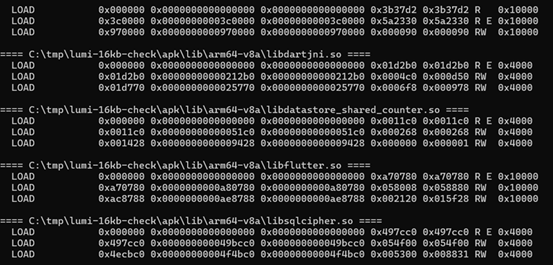
- The original problem library no longer showed
0x1000. - Debug upgrade on a real device worked.
- Existing data was readable.
- New data could be created.
- Core reminder / notification flows worked.
From an engineering perspective, the key was not the amount of code changed. The key was locating the problem at the correct layer. Treating this as a business logic bug would have wasted time. Looking at the release artifact, native libraries, and ELF alignment led directly to the root cause.
Advice for Indie Developers
If your app is going to Google Play and uses Flutter plugins, React Native modules, encrypted databases, audio/video SDKs, map SDKs, recognition SDKs, or payment SDKs, add this item to your release checklist:
Check whether every .so file in the final release package supports 16 KB page size.
Do not rely only on whether the app runs locally. Do not rely only on whether the APK installs. Google Play release checks are about compatibility with current and future device requirements, not just the test phone in your hand.
Recommended pre-release checks:
zipalign -c -P 16 -v 4 app-release.apk
and:
llvm-readelf -l your-library.so
If you release with AAB, generate an APK from the AAB using bundletool and inspect that generated APK as well.
Closing Notes
This 16 KB page size issue was a reminder that mobile release engineering is no longer only about whether features work and whether the package uploads. It also includes the build toolchain, third-party native SDKs, the AAB-to-APK generation path, and compatibility with newer hardware platforms.
For solo developers, the issue may look low-level, but the handling process is manageable:
- Do not start by rewriting business code.
- Locate the exact
.sofile. - Separate zip alignment from ELF alignment.
- Prefer upgrading officially maintained dependencies.
- After the fix, verify both the build artifact and real device upgrade behavior.
One practical lesson: Google Play’s error message often tells you what is not compliant, but not which dependency caused it. The real answer is usually hidden inside the final build artifact.